
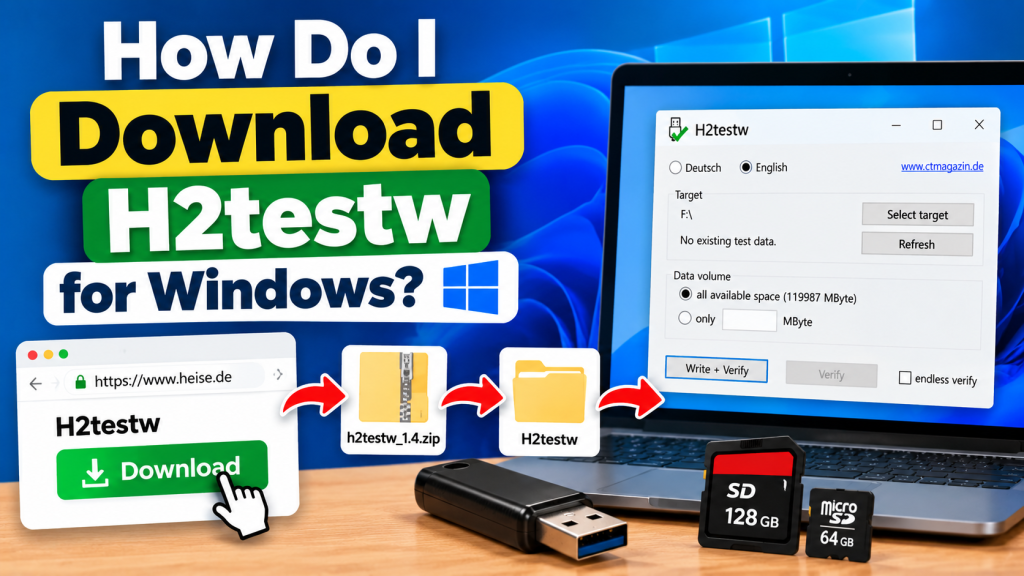
H2testw is a lightweight Windows utility used to check USB flash drives, SD cards, microSD cards, SSDs, and other storage devices for capacity and data errors. Unlike many desktop programs, it is portable, so users do not need to complete a traditional installation process before using it.
Downloading H2testw for Windows is straightforward, but choosing a reliable source is important. The official Heise/c’t download pages currently provide H2testw 1.4 as a small ZIP archive. Once downloaded, the program can be extracted and launched directly through its executable file.
Where Can You Download H2testw Safely?
The safest approach is to obtain H2testw from Heise, the publisher associated with c’t Magazin. Heise currently lists H2testw 1.4 as a free Windows utility and provides information about the developer, operating-system support, license, and download size.
The Heise FTP directory also contains the original h2testw_1.4.zip archive. Using an established source reduces the chance of downloading modified installers, bundled programs, or unrelated software presented under the H2testw name.
Steps to Download H2testw on Windows
H2testw does not require a complicated setup wizard. The download is only a small ZIP archive, making it quick to save and prepare on most Windows computers. After obtaining the archive, users simply need to extract its contents before opening the program.
Follow these basic steps:
- Open the official Heise H2testw download page.
- Choose the available download option.
- Save the H2testw ZIP file to your computer.
- Locate the downloaded ZIP archive.
- Extract the contents into a separate folder.
- Open the extracted folder.
- Run
h2testw.exeto launch the program.
Because H2testw is portable, you do not have to install it into Windows like conventional software. Heise states that launching the executable file is enough to start using the utility.
How to Extract the H2testw ZIP File
After downloading H2testw, open the folder where your browser saved the ZIP file. In Windows, you can normally right-click the archive and select Extract All, choose a destination folder, and complete the extraction process.
Avoid trying to use the utility directly from inside the compressed archive if Windows or your archive software behaves unexpectedly. Extracting all included files into their own folder keeps the program organized and makes it easier to locate the executable whenever you need another storage test.
Does H2testw Need to Be Installed?
H2testw does not require a standard installation. It is portable software, meaning the application can run directly from its extracted files. This also makes it convenient for users who do not want another installed application appearing in the Windows Start menu or installed-program list.
You can keep the extracted H2testw folder on your computer and open it whenever you need to check a storage device. If you no longer need the utility, removing the extracted folder is generally enough because there is no traditional installation package to uninstall.
How to Launch H2testw After Downloading
Inside the extracted folder, locate h2testw.exe and open it. When the application starts, you can select English instead of German if needed. The main interface provides controls for choosing a target drive and deciding how much available space should be tested.
Before selecting a target, carefully confirm the drive letter belonging to the USB drive or memory card you want to check. Selecting the correct storage device is essential because H2testw creates test files on the chosen drive while checking its writable capacity.
What Should You Do Before Running H2testw?
Although H2testw creates test files in available storage space, important files should still be backed up before testing a questionable drive. A defective, corrupted, or counterfeit storage device may already be unreliable, so valuable data should not remain dependent on that device during a full test.
For a clearer capacity test, users commonly choose all available space and then select Write + Verify. H2testw writes test data and later reads it back to determine whether the tested storage can correctly retain the information.
How to Check That You Downloaded the Correct Program
A genuine H2testw download should be a small package rather than a large software installer. Heise currently identifies version 1.4 for Windows and lists the download at approximately 213 KB, while its FTP directory contains the h2testw_1.4.zip archive.
Be cautious if an unfamiliar website asks you to install download managers, browser extensions, unrelated utilities, or additional applications before getting H2testw. These extras are not required for the portable H2testw program available through Heise.
Can H2testw Run on Modern Windows PCs?
Heise continues to list H2testw as Windows software, and its portable design makes it simple to run without a separate installer. However, the program itself is an older utility, with version 1.4 dating from 2008, even though the official Heise download remains available today.
The age of the application does not change its basic purpose: writing test files and verifying them afterward. Users mainly choose it because its simple testing approach can help reveal storage errors and suspicious capacity on removable drives.
Conclusion:
H2testw can be downloaded for Windows as a small ZIP archive from the established Heise/c’t source. After downloading it, extract the archive, open ith2testw.exe, choose your preferred language, and select the storage device you want to test. No traditional Windows installation is required.
H2testw is particularly convenient because it is free, portable, and simple to launch whenever you need to verify removable storage. Downloading it from a trusted source and checking the correct target drive before starting will help you use the tool more safely and effectively.